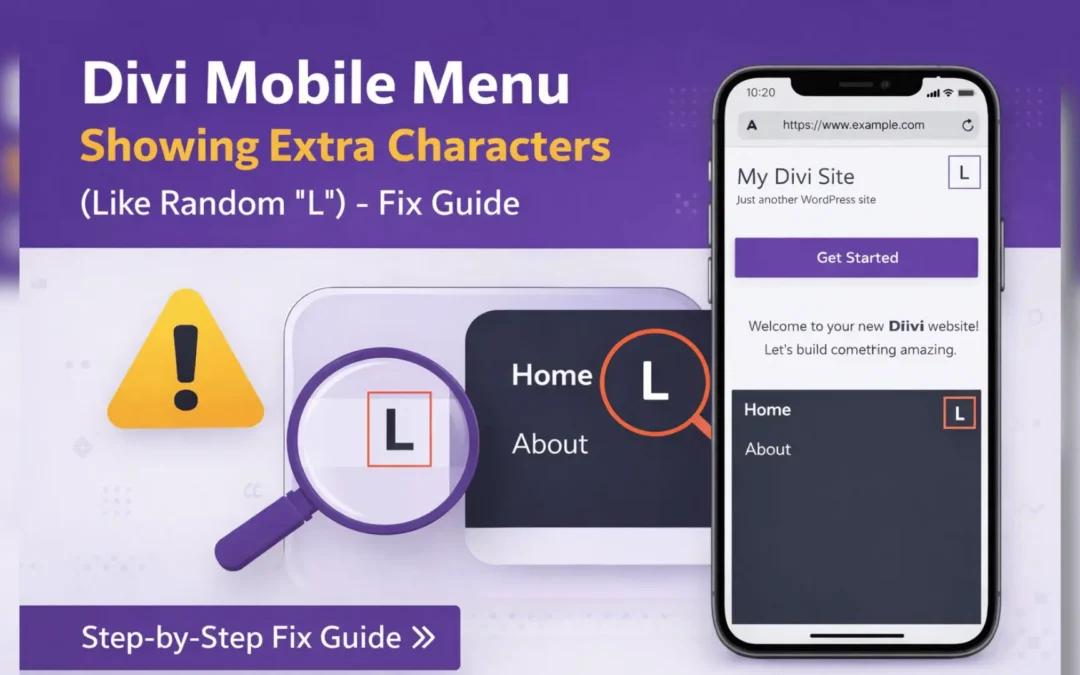
If you are using the Divi theme on your WordPress website and notice extra characters or strange symbols (such as a random “L”, square boxes, or broken icons) appearing in the mobile menu, you are not alone. This is a common issue faced by many Divi users, especially after theme updates, speed optimization, or custom styling changes.
In this guide, you will learn:
- What causes extra characters to appear in the Divi mobile menu
- Why the issue often shows only on mobile devices
- Simple, step-by-step solutions to fix the problem
- How to prevent it from happening again in the future
What Is the Divi Mobile Menu Extra Character Issue?
Divi uses a special icon font to display the hamburger menu icon on mobile devices. When this icon font does not load correctly, the browser cannot display the icon and instead shows random letters or symbols (such as “L”, boxes, or strange characters).
This problem usually appears:
- Only on mobile or tablet devices
- After updating Divi or WordPress
- After enabling cache or performance optimization plugins
- After adding custom CSS or third-party icon libraries
The solution isn’t just about doing less; it’s about doing what matters more. By identifying which actions have the greatest impact, you create space to focus deeply, make better decisions, and move with greater clarity. Prioritization is what allows you to stop reacting to your day and start leading it—with purpose, structure, and a sense of direction that builds momentum over time.
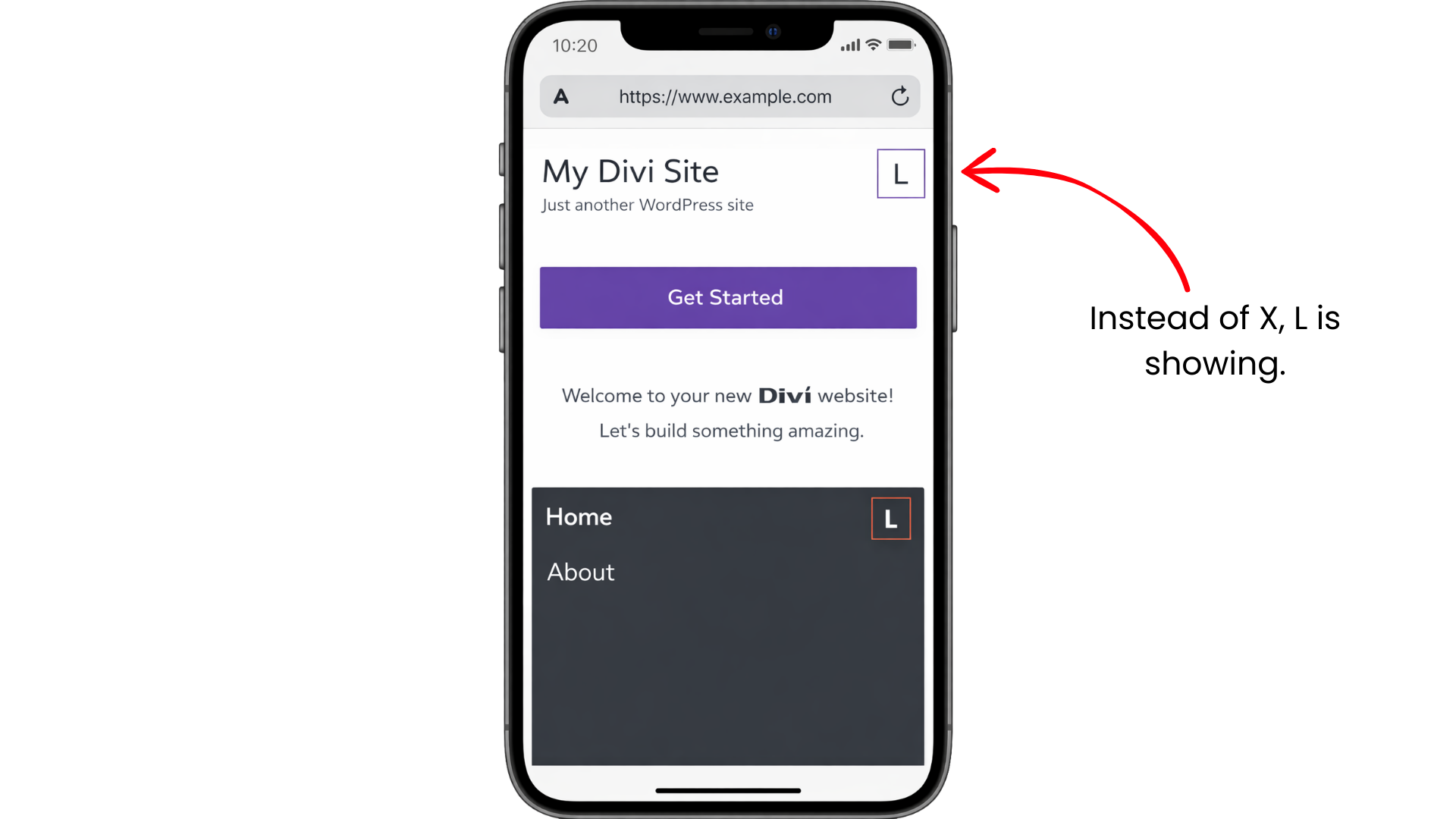
Common Causes of Extra Characters in Divi Mobile Menu
1. Divi Icon Font Not Loading Properly
Divi relies on its own icon font (ETModules). If these font files fail to load because of server issues, CDN restrictions, or blocked resources, the icons will not render correctly and random characters may appear.
2. Cache or Optimization Plugins
Caching and performance plugins sometimes combine or minify CSS and font files. This can break the connection between Divi and its icon fonts, causing the mobile menu icon to display incorrectly.
3. Incorrect Custom CSS
Custom CSS added to the theme or child theme may unintentionally add content to the mobile menu icon using :before or :after pseudo-elements. This can force text like “L” to appear in place of the icon.
4. Conflict With Icon Libraries (Font Awesome, etc.)
Loading external icon libraries such as Font Awesome can override Divi’s icon font styles. When both libraries try to control the same elements, it can result in broken or incorrect icons.